
In addition to the audio and video recorders, as of version 1.0.43 (Build 2026021901), there is also a whiteboard submission option.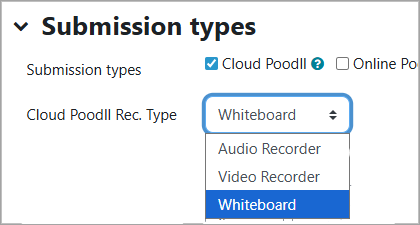
When displayed it looks like this:
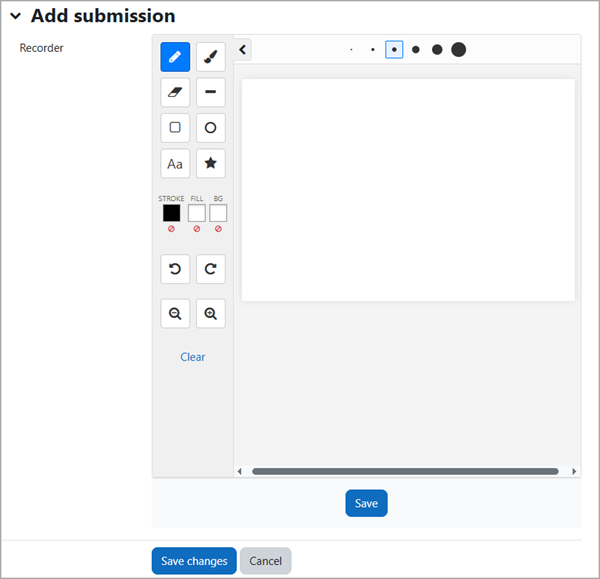
It has a number of drawing tools, allows unlimited "undo"s , and supports drawing over a background image. The undo list is saved with the student's drawing, so that if they choose to "edit submission" they can continue their drawing session. You can try it out here:
https://demo.poodll.com/mod/assign/view.php?id=1877&action=editsubmission
Whiteboard Settings
There are just two configurable options for the whiteboard in the cloud Poodll assignment submission instance settings.
| Whiteboard Size | Options are : 320x320, 400x300, 400x400, 450x300, 450x450, 600x400, 600x600, 800x400, 800x600 |
| Background Image | Accepts a PNG or JPG image. |
Drawing Tools
The drawing tools live in a collapsible panel on the left side of the whiteboard. Some of the tools have further options (pen sizes and font details and stamps) which are displayed in the top bar of the whiteboard.
Pen (freehand)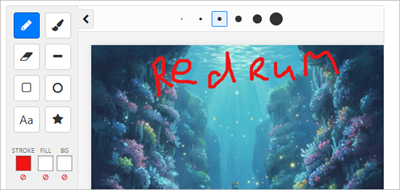 | Highlighter pen 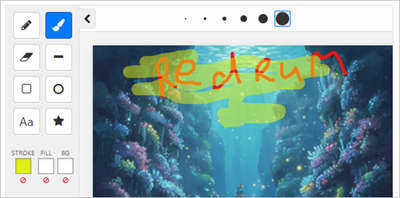 |
Eraser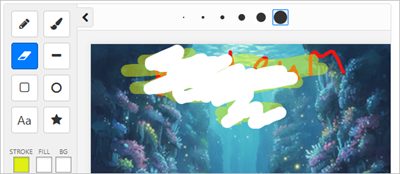 (NB doesn't erase to background image currently) | Line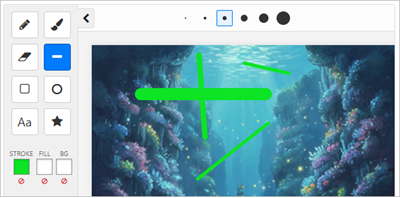 |
Rectangle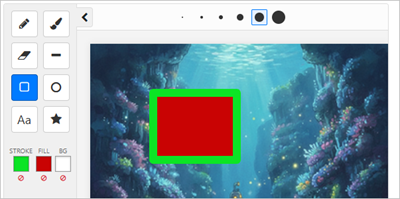 | Circle ( transparent fill)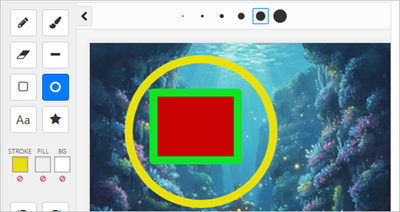 |
Text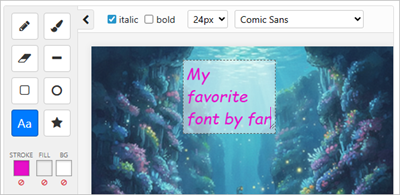 | Stamp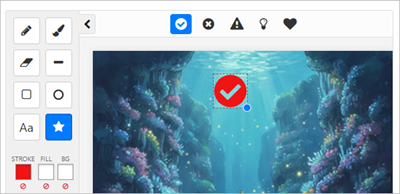 |
Colors
The three colors are:
- Stroke - pen, font, stamp and shape border color
- Fill - the inside color of a shape
- Background - The canvas color ( not useful with a background image)
To choose a color
- Tap on one of the color boxes
- Select the spectrum range, then
- Select the specific color.
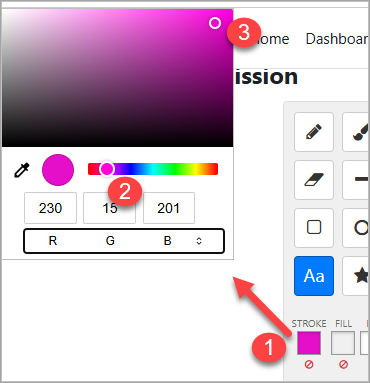
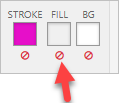
To set the color to transparent, tap the little red icon below the color box. Currently that is only really useful for the background color of shape objects.
Auto Save
The whiteboard automatically saves the drawing to the Moodle draft files area. After a brief drawing pause you will note the whiteboards save button disables itself after it has auto saved. But the assignment submission is not saved automatically. The student will still need to press the assignment's Save Changes button.