
The WordCards item type adds some of the vocabulary practice activities from Poodll WordCards to MiniLesson. It is useful to reinforce the student's understanding of the word after it has first been introduced. The activity works on a small pool of target language new word terms and their definitions/translations.
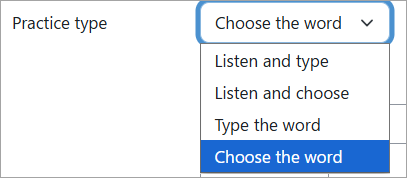
There are four practice activity types available in the item. Only one can be chosen. So you will probably create several instances of the WordCards item type in a single MiniLesson activity, each of a different practice type.
The practice activity is repeated as many times as there are words in the words pool.
The practice types are:
- Choose the word
- Type the word
- Listen and type
- Listen and choose
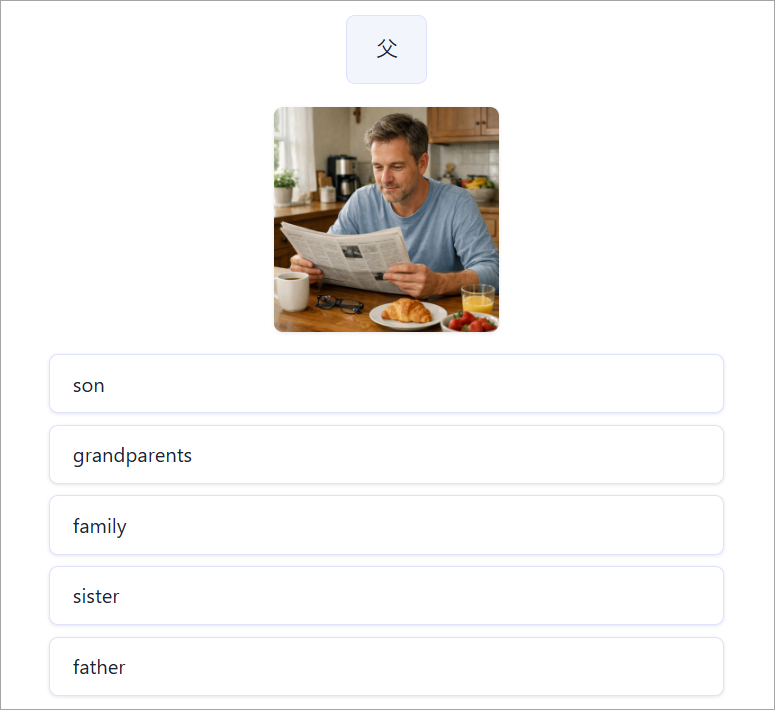
Choose the word
Given the definition of a word the student must choose the correct target language word from a list. The choices will include the target word and up to 4 of the other new words.
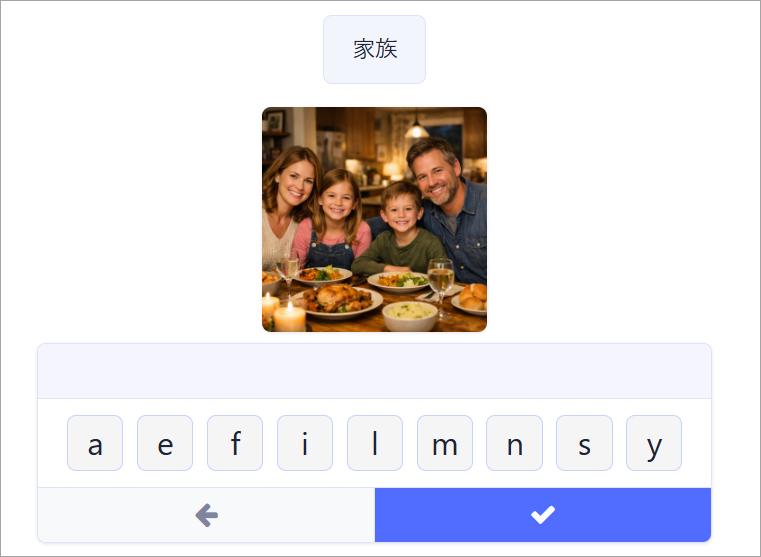
Type the word
Given the definition of a word the student must type the correct target language word. They can use their device keyboard, or the onscreen keyboard.
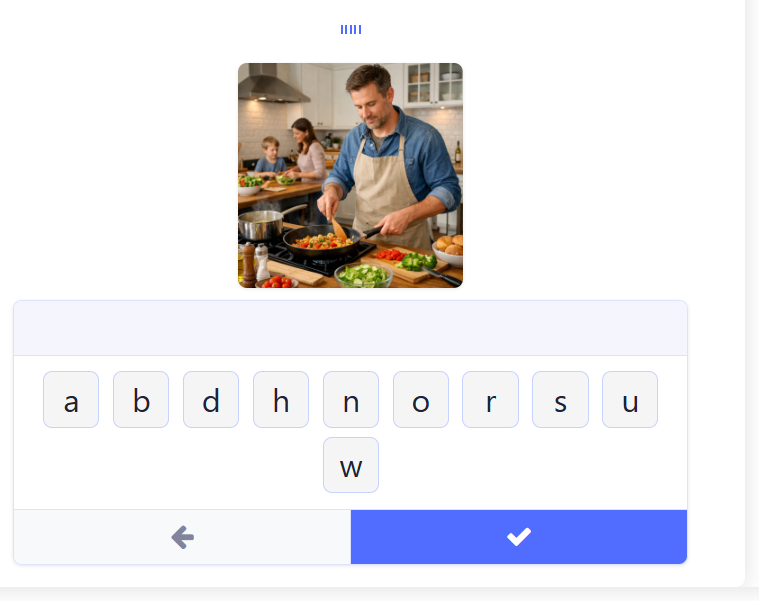
Listen and type
After hearing the target language word the student must type the word. They can use their device keyboard, or the onscreen keyboard.
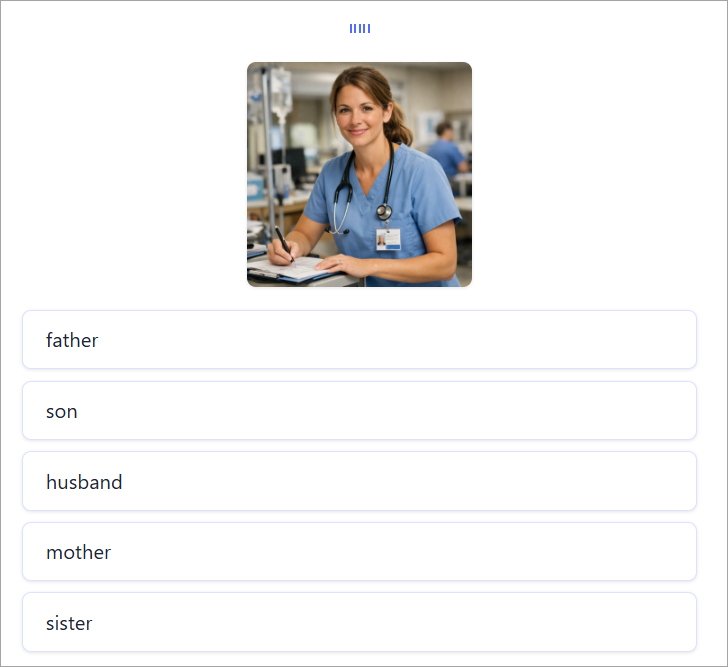
Listen and choose
After hearing the word the student must choose the correct definition from a list. The choices will include the target word and up to 4 of the other new words.
Configuring the WordCards item type
The Practice Types
Choose the practice type from the list.
The list of words
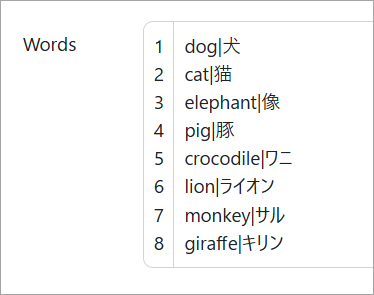
Set the list of words, the format is simply a pairing of new word and its definition separated by a pipe character. Each pairing should be on a new line, e.g:
new-word1|definition1
new-word2|definition2
Images and audio
By default audio for the listen practice types is text to speech and voice options can be configured. But it is also possible to upload audio files. If you upload audio files they should be named with the matching index of the word the audio is for in the words list. e.g
1.mp3
2.mp3
Similarly images are optional and if specified should be named to match the index of the word the image is for in the words list. e,g
1.png
2.png
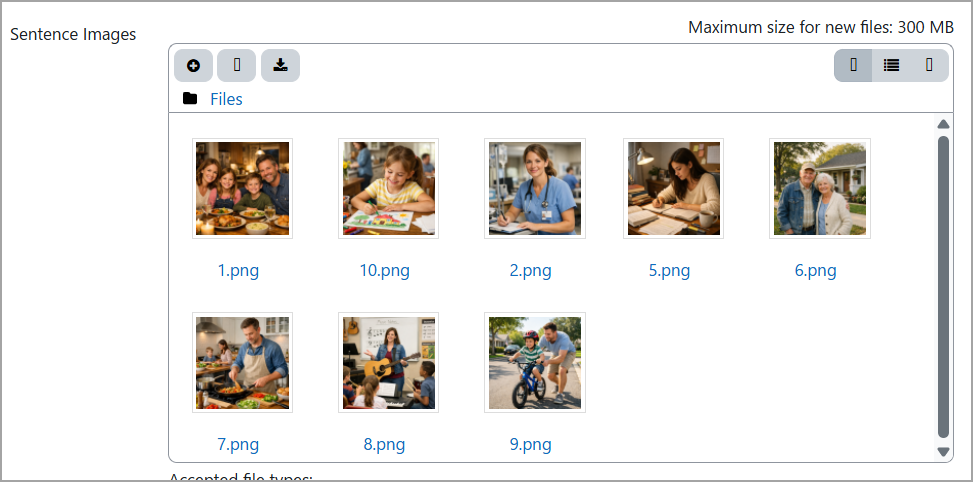
See this page for more information on adding images and audio in this way:
https://support.poodll.com/en/support/solutions/articles/19000166888-sentence-audio-and-images