There are different varieties of Claude, They all accept OAuth and some can use bearer authentication
- Claude Code: OAuth and bearer authentication
- Claude.ai: the web app: OAuth only
- Claude: the mobile app: OAuth only
- Claude: the desktop app: OAuth and bearer authentication
OAuth authentication setup
If OAuth for MCP is enabled on your Moodle server you can use these steps. See this page to learn about setting up OAuth for use with Poodll,
Claude Code
Claude Code manages remote MCP servers via the command line and performs an OAuth loopback flow in your default browser.
- Register the remote MCP server: In your terminal (outside an active claude prompt), run:(Optional: append --scope user if you want this server available across all local projects instead of just the current folder).
claude mcp add --transport http moodle-minilesson https://[some-moodle-server]/mod/minilesson/mcp.php
- Authenticate with OAuth:
- Start a Claude Code session
claude
- Type the slash command: /mcp
- Select moodle-minilesson to authenticate.
- A browser tab will open to your Moodle OAuth login page. Log in, grant permission, and close the tab once authorization completes.
- Start a Claude Code session
- Verify:
- In Claude Code, run /mcp or exit and run claude mcp list. The status should display ✔ Connected.
Claude.ai: the web app
Remote HTTP MCP servers in Claude.ai are added as Custom Connectors and tied to your Anthropic account.
- Log in to Claude.ai in your browser.
- Click your Profile / Initials (bottom-left) and select Settings (or navigate to Customize > Connectors).
- Go to the Connectors tab.
- Click "+" or Add custom connector.
- Fill in the fields:
- Name: Moodle MiniLesson
- Remote MCP Server URL: https://[some-moodle-server]/mod/minilesson/mcp.php
- Click Add Connector / Connect.
- Claude will fetch the endpoint metadata and open a popup redirecting to your Moodle OAuth login.
- Log in to Moodle, confirm the requested permissions, and allow access.
- The connector will now display as connected, making its tools available inside your chats.
Claude: the mobile app
The mobile app shares the same cloud backend and user profile as Claude.ai.
- Automatic Sync (Recommended):
- If you have already added the connector in Claude.ai (Web App) under the same account, it automatically syncs to your mobile app without any extra setup.
- Direct Setup on Mobile:
- Open the Claude app on iOS or Android.
- Tap your Profile icon (top corner) > Settings > Connectors.
- If the mobile app shows the Add custom connector option, tap it and enter your MCP url:
https://[some-moodle-server]/mod/minilesson/mcp.php
then approve the OAuth prompt in the in-app browser. - Note: If the mobile interface only displays toggles for existing connectors, add it once via a browser at claude.ai/settings/connectors, and it will immediately become available in the mobile app.
Claude: the desktop app
Remote HTTP servers requiring OAuth are handled through the UI connector settings rather than editing claude_desktop_config.json (the JSON file is intended for local stdio subprocesses).
- Open the Claude Desktop App.
- Make sure you are signed in to your Claude account.
- Open Settings:
- macOS: Claude menu bar > Settings... (or Cmd + ,).
- Windows: Menu / Profile icon > Settings.
- Select the Connectors tab.
- Click Add custom connector (or the "+" button).
- Enter:
- Name: Moodle MiniLesson
- Remote MCP Server URL: https://[some-moodle-server]/mod/minilesson/mcp.php
- Click Connect / Add. Your default browser will launch to authenticate with your Moodle OAuth provider.
- Approve the authorization request in your browser. Once completed, return to the Claude Desktop App. The server's tools will be active.
Bearer authentication setup
Claude Code
Use the following command to add the MCP server (be sure to add your moodle url and token)
claude mcp add --transport http minilesson https://YOUR-MOODLE-SITE/mod/minilesson/mcp.php --header "X-API-Key: YOUR_TOKEN"
Then from within a Claude Code session /mcp should list minilesson and its tools
Claude: the desktop app
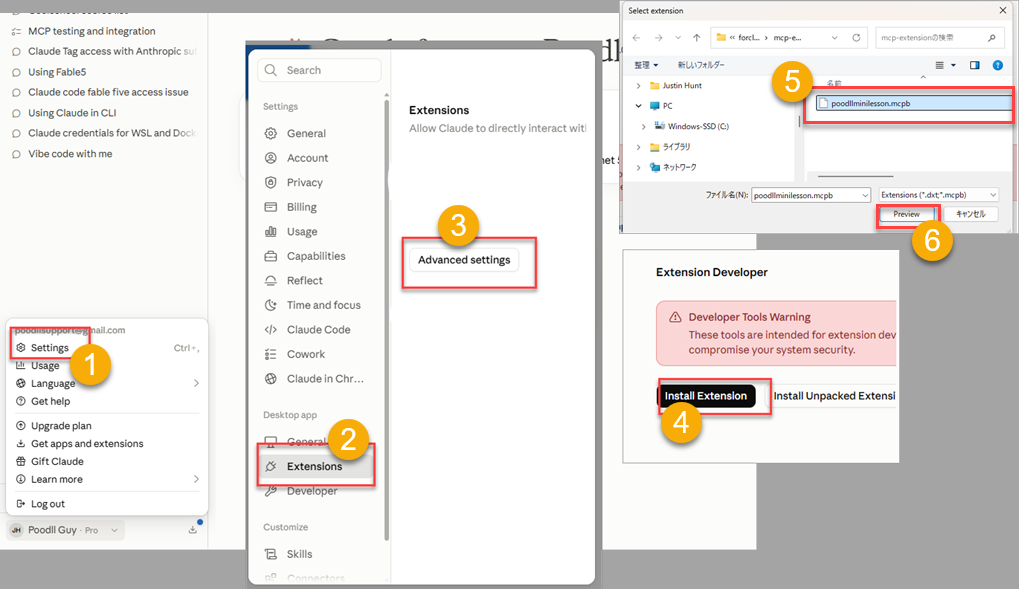
You should add Poodll MiniLesson as an extension to Claude (desktop app). NB this won't enable it on Claude (web app).
- Download the poodllminilesson.mcpb file. It is linked to at the bottom of this document. Download it.
- Visit Claude (desktop app) settings -> Extensions -> Advanced -> Add Extension
- Select the file you downloaded: poodllminilesson.mcpb
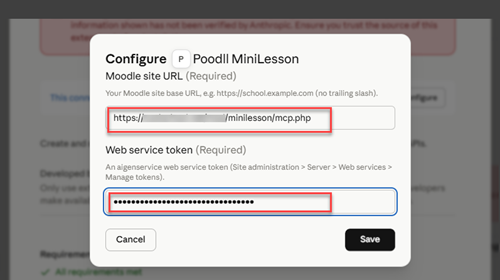
- Enter the MCP file URL for your Moodle server : https://[your moodle url]/mod/minilesson/mcp.php
and your web service token - Enable the extension
Test it by asking it to list the courses you (the web service user) have access to.